November 10, 2026
Updated November 24, 2026
23 min read
Your buyers are asking AI. Are you the answer?
Find out with OptimizeCamp →The best AI tools for teachers in 2026: MagicSchool, Brisk, Gemini, ChatGPT for Teachers, and 6 more, with free plans and prices checked on vendor sites.
TL;DR
The best AI tools for teachers in 2026 are MagicSchool for lesson planning, Brisk Teaching for feedback inside Google Docs, and Gemini for Education for Google Workspace schools. ChatGPT for Teachers is free for verified U.S. K-12 staff, Microsoft Copilot Teach is free with a school Microsoft 365 license, and Diffit leads for differentiated instruction. Khanmigo, Gemini Notebook, Canva for Education, and SurePrompts round out the list. Every pick has a free plan, and we checked prices and limits on each vendor's site in November 2026.
The best AI tools for teachers in 2026 are MagicSchool for lesson planning and classroom materials, Brisk Teaching for fast feedback inside Google Docs, and Gemini for Education for schools that run on Google Workspace. All three have a free option, and so do most of the other picks below. We also flag where higher-ed instructors get a different deal.
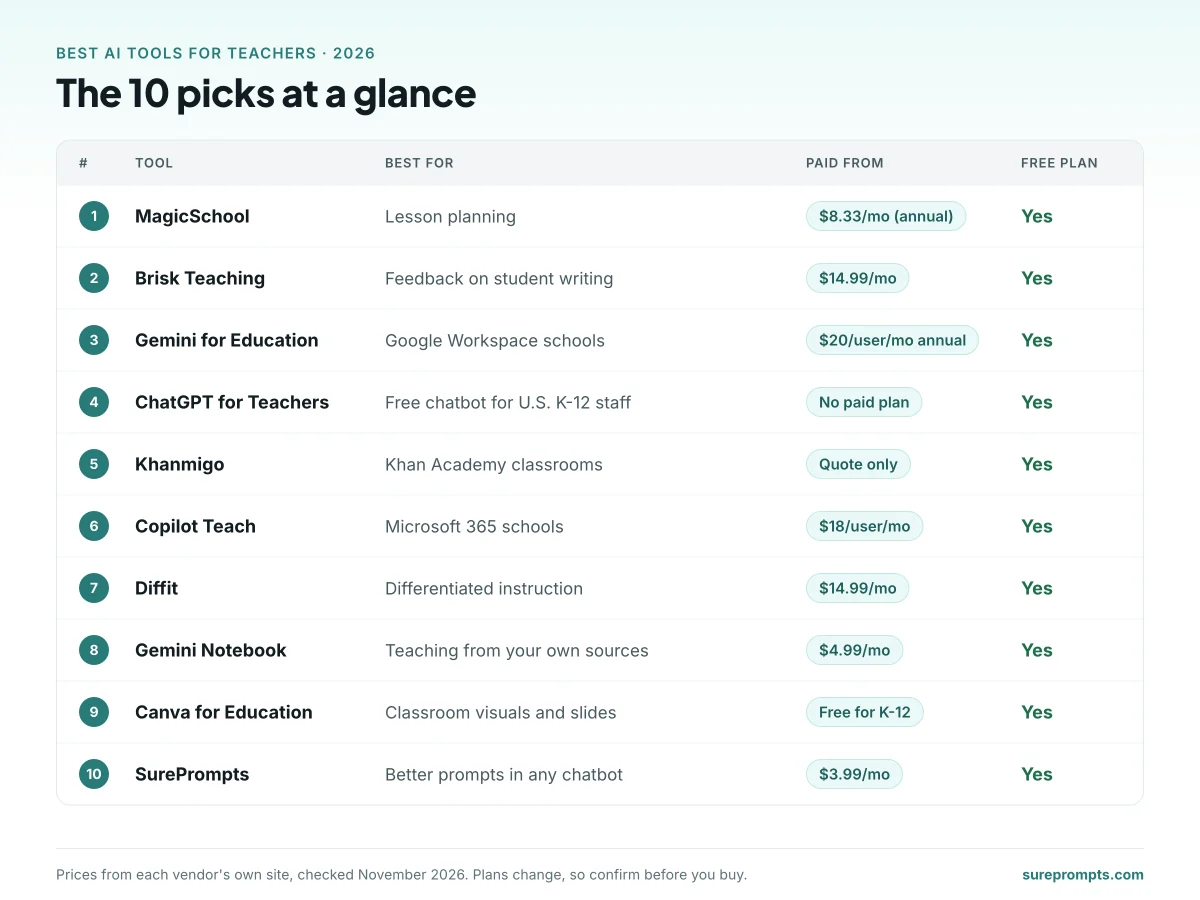
The comparison table further down puts free plans, prices, and standout features side by side.
To pick the best AI tools for teachers, we started from the jobs that fill a teacher's week, then applied five filters.
A free plan a classroom teacher can use. Every pick has a free plan or a free education program, and we name the catch on each one.
Student data protection on paper. We favored tools that publish FERPA and COPPA commitments and say they do not train AI models on student data. Your district's approval still decides.
Fit with your school's platform. Google and Microsoft districts get different free AI, so we included the built-in option for each.
Time saved on real teaching jobs. Lesson plans, rubrics, quizzes, leveled texts, and writing feedback came first.
The teacher stays in control. We looked for editable drafts, feedback that stays hidden until you approve it, and student-facing AI that teachers can monitor.
We compared plans, features, and limits on each vendor's own site in November 2026 and picked each tool for its fit with teachers' work. No tool paid to be listed.
5.9 hours
MagicSchool is the best all-in-one AI tool for teachers in K-12 who want one place for lesson plans, rubrics, quizzes, and parent emails. Among AI tools for lesson planning on this list, it has the longest menu: 80+ teacher tools, each a short form (grade, topic, standard) instead of a long prompt.
The free plan covers every teacher tool, the Raina chatbot, and exports to Google and Microsoft formats. Plus adds unlimited generations, saved output history, 50+ student tools, and Student Rooms, where students use AI in a space you set up and monitor.
Best for: K-12 teachers who want ready-made planning tools with no prompt writing.
Pricing: Free; Plus is $12.99 a month, or $8.33 a month billed annually ($99.96 a year); district plans are by quote (MagicSchool pricing).
Strengths: The one-tool-per-task design suits colleagues who are new to AI. MagicSchool says it is FERPA and COPPA compliant and never uses student data to train AI models.
Watch out for: The free plan has generation limits that MagicSchool does not publish as a number. It is built for K-12, so it offers little for college courses.
Try this: Open Raina, MagicSchool's chatbot, and paste:
You are an experienced [GRADE] [SUBJECT] teacher. Plan a
[LENGTH]-minute lesson on [TOPIC] aligned to [STANDARD CODE].
Include a hook, a worked example, guided practice, independent
practice at two levels, and a 3-question exit ticket with
answers. Format it as a table I can paste into Google Docs.
Brisk Teaching is the best AI tool for teachers who spend evenings commenting on student essays in Google Docs. It runs as a Chrome and Edge extension, so its tools appear on the page you have open, from a student's Doc to a PDF.
Its feedback tools include rubric-based comments and Batch Feedback for a whole folder, and nothing reaches students until you approve it. Change Level rewrites a text for any grade from 1 to 12 and translates it into 50+ languages. Inspect Writing replays how a student wrote a Google Doc, including pasted text, and Brisk says it gives no AI score.
On MagicSchool vs Brisk: MagicSchool is a web app for planning, while Brisk works inside your open tabs and is strongest on work students have already submitted. As with all AI grading tools for teachers, treat its comments as a first draft and keep the grade decision yours.
Best for: Teachers in Google Docs and Slides who give a lot of written feedback.
Pricing: Free with 20+ tools; Educator Pro is $14.99 a month for unlimited use and 35+ tools; school and district plans are by quote (Brisk plans).
Strengths: You never copy and paste between tabs. Brisk says it is FERPA and COPPA compliant and never uses student or teacher inputs to train AI models.
Watch out for: The extension runs only in Chrome and Edge on a computer, so it is a poor fit on an iPad. The free plan has a daily usage limit.
Try this: Open a student essay, click the Brisk button, choose rubric-based feedback, and paste:
Rubric for a [GRADE] argumentative essay on [TOPIC]:
1. Claim: a clear, arguable position in paragraph one.
2. Evidence: at least [NUMBER] quotes from [TEXT TITLE], each
   explained in the student's own words.
3. Counterclaim: one opposing view, named and answered.
Give one specific strength and one next step per criterion.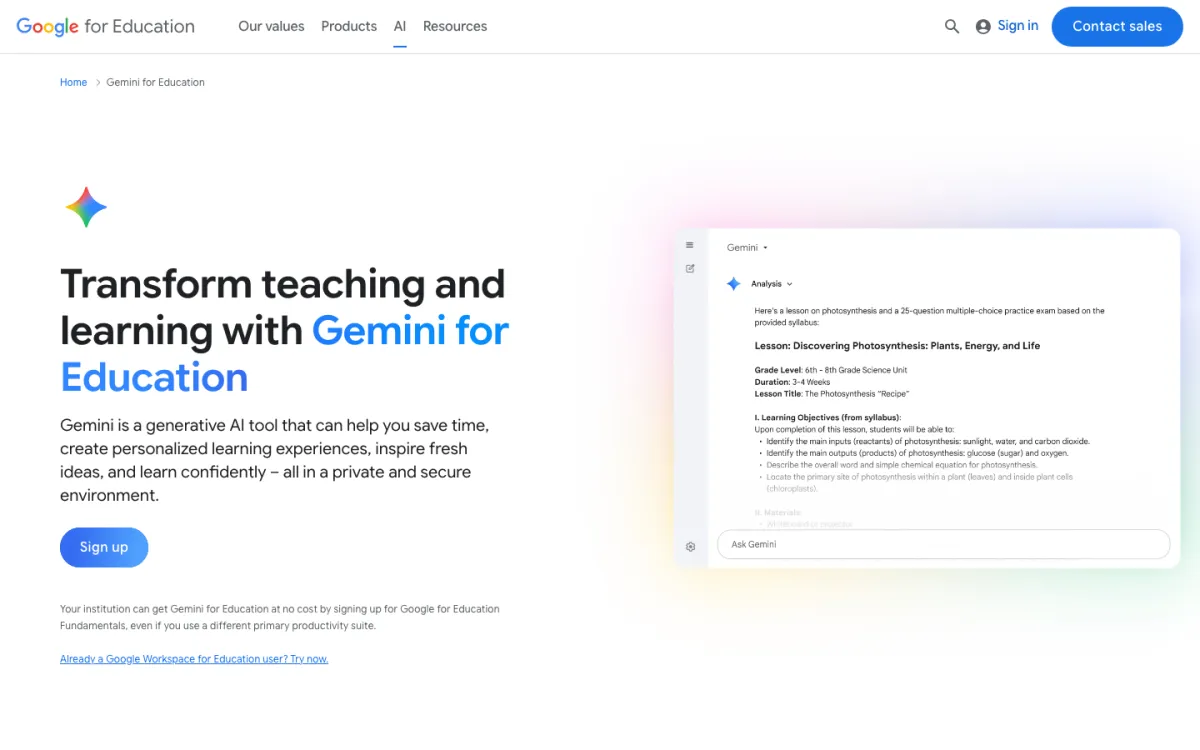
Gemini for Education is the best free AI option for teachers whose school runs Google Workspace for Education, because Google includes the Gemini app and Gemini Notebook in every education edition at no charge. School accounts also get limited Deep Research and Gems, custom versions of Gemini you set up once and reuse.
Inside Google Classroom, Gemini adds 30+ free teacher features: lesson plan drafts from a grade and topic, quizzes you can export to Google Forms, rubrics, and student-facing Gems such as Quiz me. Universities on Workspace for Education get the same free tier. Our guide on how to use Google Gemini covers the app.
Best for: Teachers and professors at schools that use Google Workspace for Education.
Pricing: Free with all Workspace for Education editions; the Google AI Pro for Education add-on is $20 per user a month (billed annually) or $24 on a flexible plan, for users 18 and older (Gemini for Education).
Strengths: No new account or bill, and it sits inside Docs, Classroom, and Forms. Google says education data is not human-reviewed or used to train AI models, and students under 18 get extra guardrails.
Watch out for: Your admin has to turn features on, so availability varies by district. Output stays generic unless you give it your grade level, standards, and student needs.
Try this: In the Gemini app, attach your unit plan from Drive and paste:
Using the attached unit plan for [GRADE] [SUBJECT], write three
versions of the reading passage on [TOPIC]: one at [LOWER GRADE]
level, one on grade level, and one extension version. Keep the
key vocabulary: [WORD LIST]. After each version, add five
comprehension questions with answers, labeled by DOK level.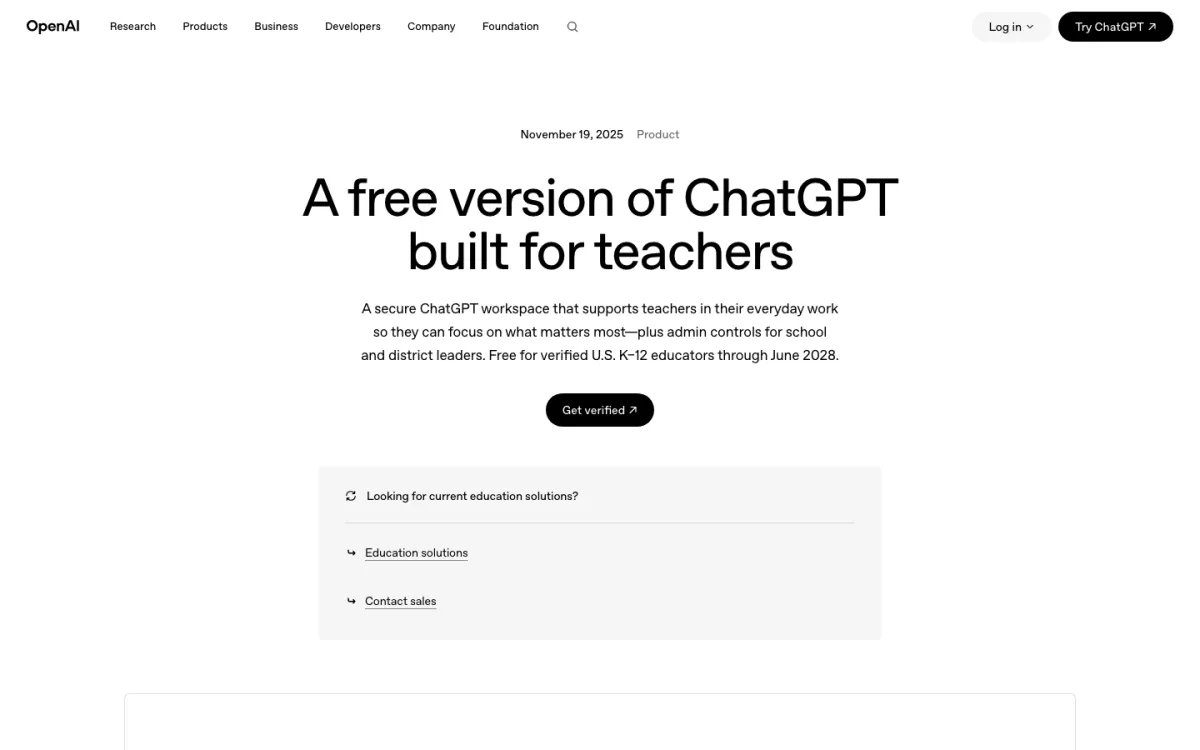
ChatGPT for Teachers is the best general-purpose chatbot for U.S. K-12 educators, because verified teachers and staff get it free until at least June 2027 (OpenAI's pages say June 2027 in one place and June 2028 in another). You verify with a school or district email, and it is not for students.
You get OpenAI's flagship model, file uploads, data analysis, web search, image generation, and shared projects for planning with colleagues, plus connections to Canva, Google Drive, and Microsoft 365. Our guide on how to use ChatGPT like a pro has techniques that carry over. College instructors are not eligible and need a campus ChatGPT Edu plan or a personal plan such as Plus at $20 a month.
Best for: U.S. K-12 teachers who want a free, flexible chatbot.
Pricing: Free for verified U.S. K-12 staff until at least June 2027; OpenAI says pricing may change after that, with advance notice (ChatGPT for Teachers).
Strengths: Shared projects let a grade-level team reuse prompts and files. OpenAI says this workspace's content is not used to train its models by default and describes FERPA-aligned protections.
Watch out for: Only staff at accredited U.S. K-12 schools and districts qualify. The free period ends, so avoid a routine you could not pay for later.
Try this: Upload quiz results with names replaced by ID numbers, then paste:
Attached are anonymized results from a [NUMBER]-question quiz on
[TOPIC] for [GRADE]. Find the three questions most students
missed, suggest a likely misconception behind each, and draft a
10-minute reteach activity for each one. Then sort the student
IDs into three small groups for tomorrow.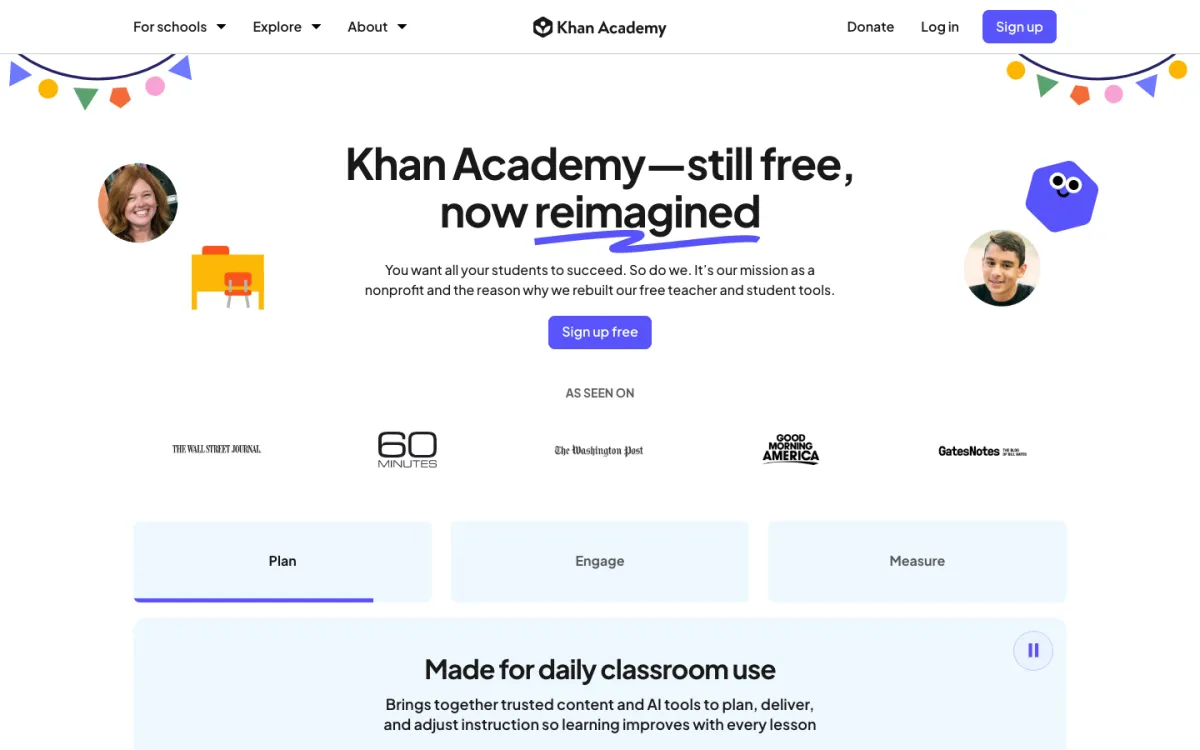
Khanmigo is the best pick for teachers who already assign Khan Academy practice, because its teacher tools are free and connect to Khan's content library. The old khanmigo.ai/teachers address now redirects to Khan Academy for Teachers ("still free, now reimagined"), where the tools live on as Khanmigo Teacher Tools and the Khanmigo Assistant.
The free teacher tools draft standards-aligned, differentiated lesson plans tied to Khan content, write learning objectives, rubrics, and exit tickets, generate lesson hooks, and offer IEP help. They also summarize student work to show who needs support.
Best for: K-12 teachers who use Khan Academy for practice and want AI planning that links to it.
Pricing: Free for teachers; learner and family plans are $4 a month or $44 a year; district plans with student access are by quote (Khanmigo pricing).
Strengths: Khan Academy is a nonprofit, and its teacher page promises "No paywalls. No ads." Lesson plans point to Khan's videos and exercises, so the practice assignment is one step away.
Watch out for: Planning works best when your curriculum overlaps with Khan Academy content. Student-facing Khanmigo comes through school or district plans, so the free version is for teachers only.
Try this: Open Khanmigo's teacher tools and paste:
I teach [GRADE] [SUBJECT]. Tomorrow's lesson is [TOPIC], and my
students struggle with [SPECIFIC SKILL]. Write a 3-minute hook
that connects to [STUDENT INTEREST], suggest two Khan Academy
exercises for practice, and write a 3-question exit ticket on
[SPECIFIC SKILL] with an answer key.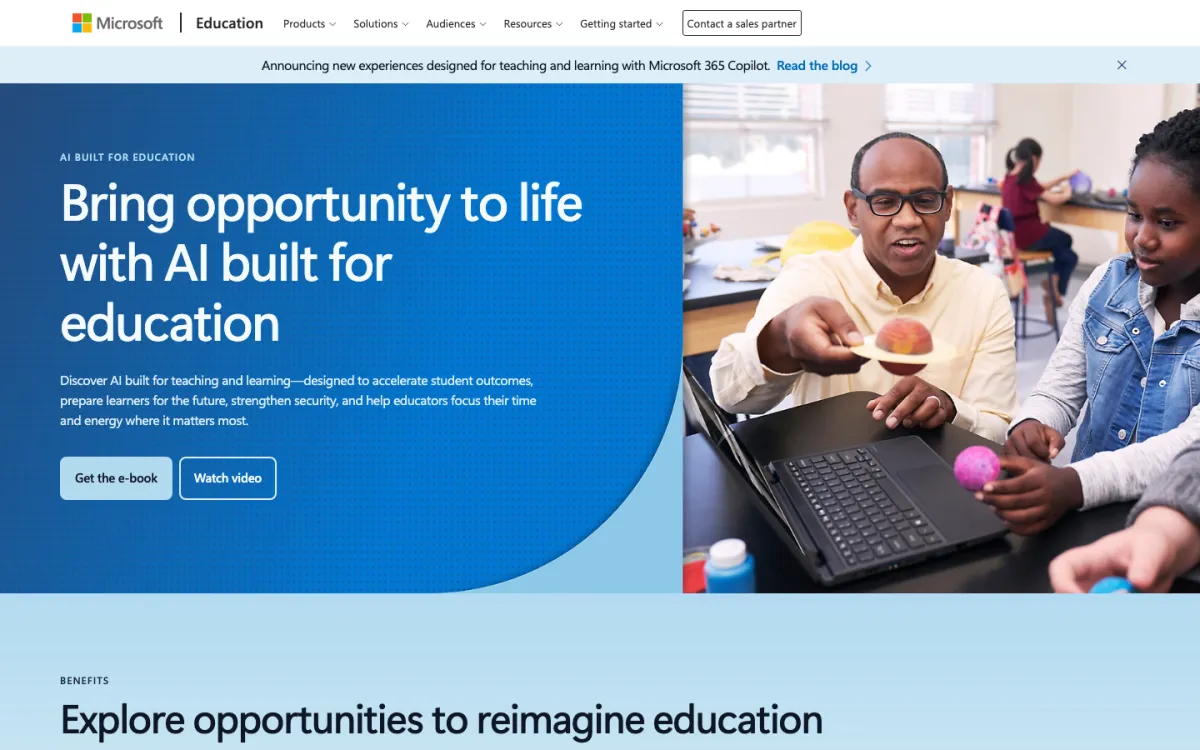
Microsoft Copilot Teach is the best free AI option for teachers in districts that run on Microsoft 365, because it needs only a Microsoft 365 for Education faculty or staff license, with no paid Copilot license. Teach sits inside the Microsoft 365 Copilot app and serves K-12 and university staff alike.
It includes a guided Lesson Plan builder and a Rubric builder that save to Word, a Quiz tool that creates a Microsoft Forms quiz grounded in your content, and Flashcards. It can also modify reading level, align a document to standards, and differentiate instructions. Copilot Chat, the general assistant, is free with A1, A3, and A5 licenses for faculty, staff, and higher-ed students 13 and older.
Best for: Teachers and professors at schools that live in Word, Teams, and Forms.
Pricing: Teach and Copilot Chat are free with eligible Microsoft 365 Education licenses; the full Microsoft 365 Copilot academic license is $18 per user a month (Copilot in education).
Strengths: Licensed staff pay nothing extra, IT has no new vendor to vet, and outputs land in Word and Forms.
Watch out for: Your IT admin has to make Teach available, and it does not appear for personal Microsoft accounts. Microsoft listed LMS integration as coming soon in late 2025, so confirm it works with your LMS first.
Try this: In Copilot Chat with your school account, upload a reading passage and paste:
Rewrite the attached passage on [TOPIC] for three groups in my
[GRADE] class: below grade level ([LEVEL]), on grade level, and
above grade level. Keep these terms unchanged: [TERMS]. Add two
discussion questions to each version.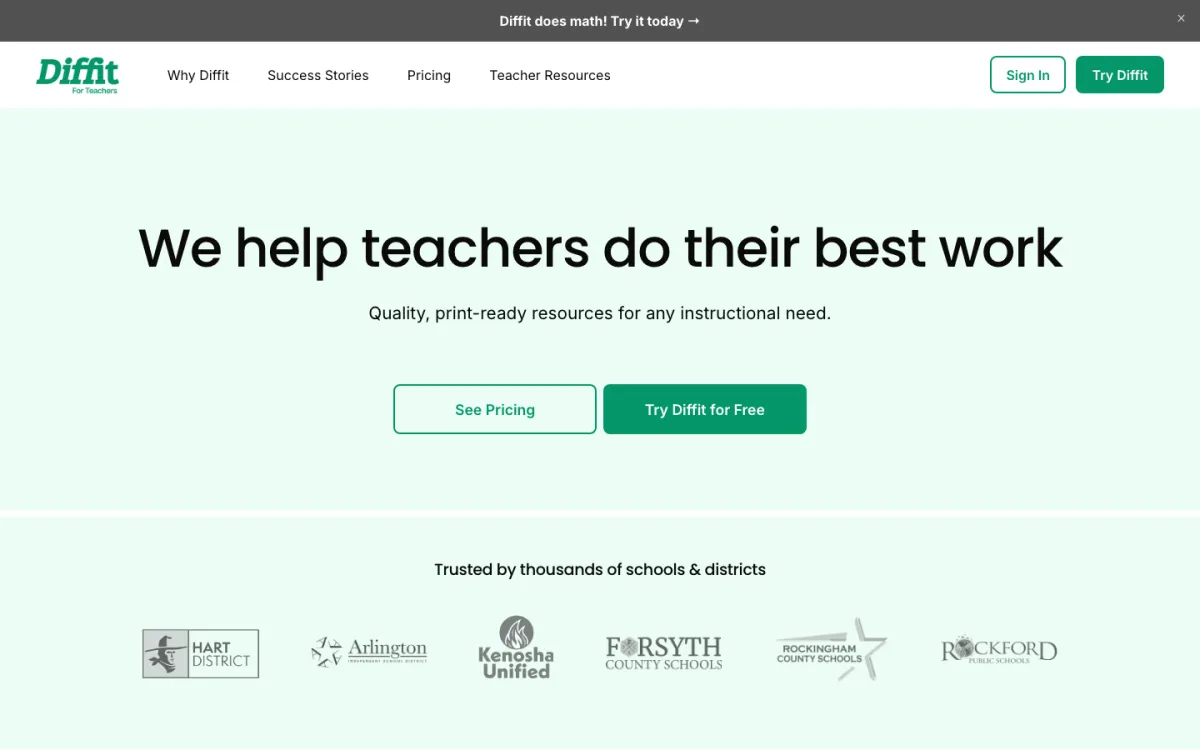
Diffit is the best AI tool for differentiated instruction when you need leveled reading passages and scaffolds fast. You start with a topic, a standard, or a text you already use, set the reading level, language, MTSS tier, and scaffolds, and Diffit returns a print-ready resource with a leveled passage, vocabulary, and questions.
It also produces station rotations, sub plans, intervention materials, and slides, and it now covers math. Diffit has no student logins and no student-facing AI, which keeps the privacy review short. To do the same job in a chatbot, our education prompt generator builds the prompt.
Best for: ELL, special education, and intervention teachers who need the same content at several levels.
Pricing: Free basic access; Premium is $14.99 a month, or $149.99 a year billed annually; school licenses are by quote (Diffit individual plans).
Strengths: Print-ready layouts save formatting time. Premium aligns resources to standards, MTSS tiers, and curricula and adds graphic organizers such as CER and Cornell Notes.
Watch out for: The free plan keeps only resources made in the last 90 days, and exports to Google and Microsoft are a Premium feature. Diffit makes materials, so it will not help with feedback or grading.
Try this: Build a three-level reading set:
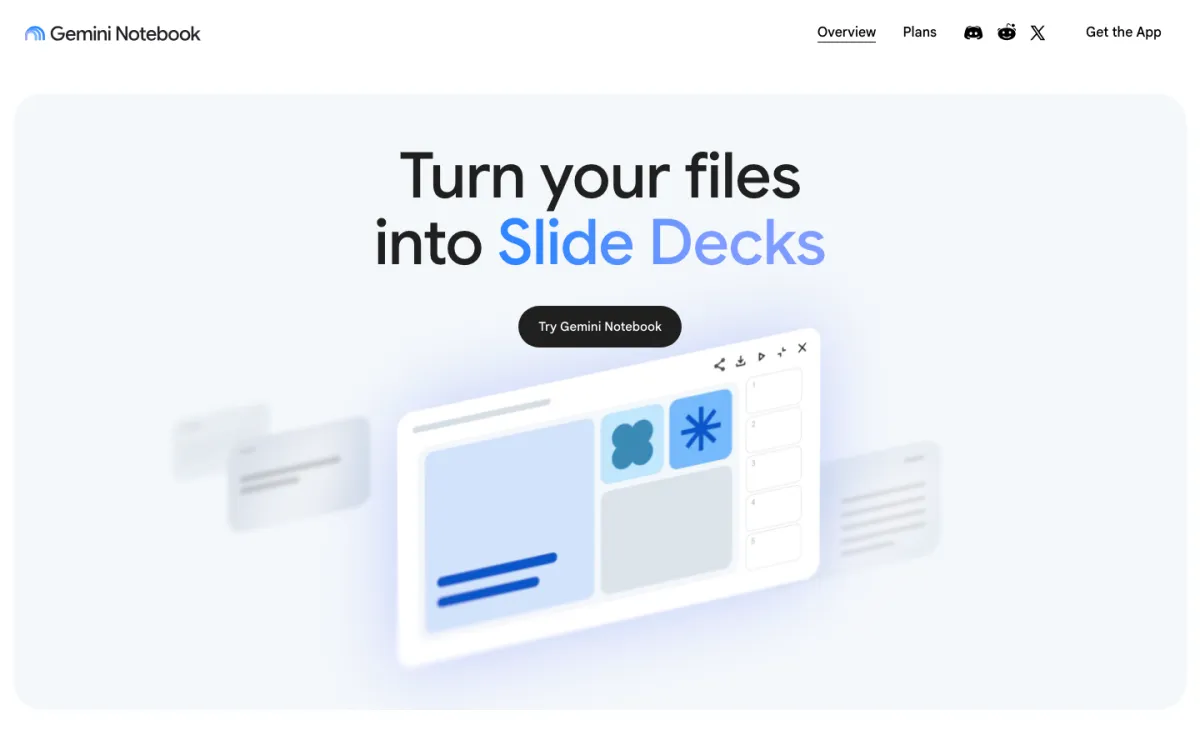
Gemini Notebook (formerly NotebookLM) is the best AI tool for teachers who want answers drawn only from their own materials. Google renamed NotebookLM in July 2026, and the workflow is the same: you upload sources such as a textbook chapter, your slides, or articles, and every answer cites the exact passage it came from.
That source grounding makes it useful for building study guides, quizzes, flashcards, mind maps, and podcast-style Audio Overviews from a unit you already teach. Google says students of any age can use it when the school admin turns it on, with extra guardrails under 18. Higher-ed instructors can load a whole course reader; our roundup of the best AI tools for research covers that side.
Best for: Turning a unit's readings into study materials with citations you can check.
Pricing: Free with a Google account or any Workspace for Education edition; Google AI Plus raises personal limits for $4.99 a month (Gemini Notebook for education).
Strengths: Citations make every answer checkable in seconds. Study guides come with key terms, sample quizzes with answer keys, and essay questions.
Watch out for: On the free education tier, each user gets 3 Audio or Video Overviews and 10 quizzes or flashcard sets a day. Sharing a chat-only notebook with students, where they cannot see your sources, needs the paid add-on.
Try this: Upload your unit readings into one notebook and paste:
Using only these sources, write a one-page study guide for
[GRADE] students on [UNIT TOPIC]: 8 key terms with plain
definitions, 5 big ideas, and 6 practice questions with answers.
Cite a source for each big idea. Then list any of my objectives,
[OBJECTIVES], that the sources do not cover.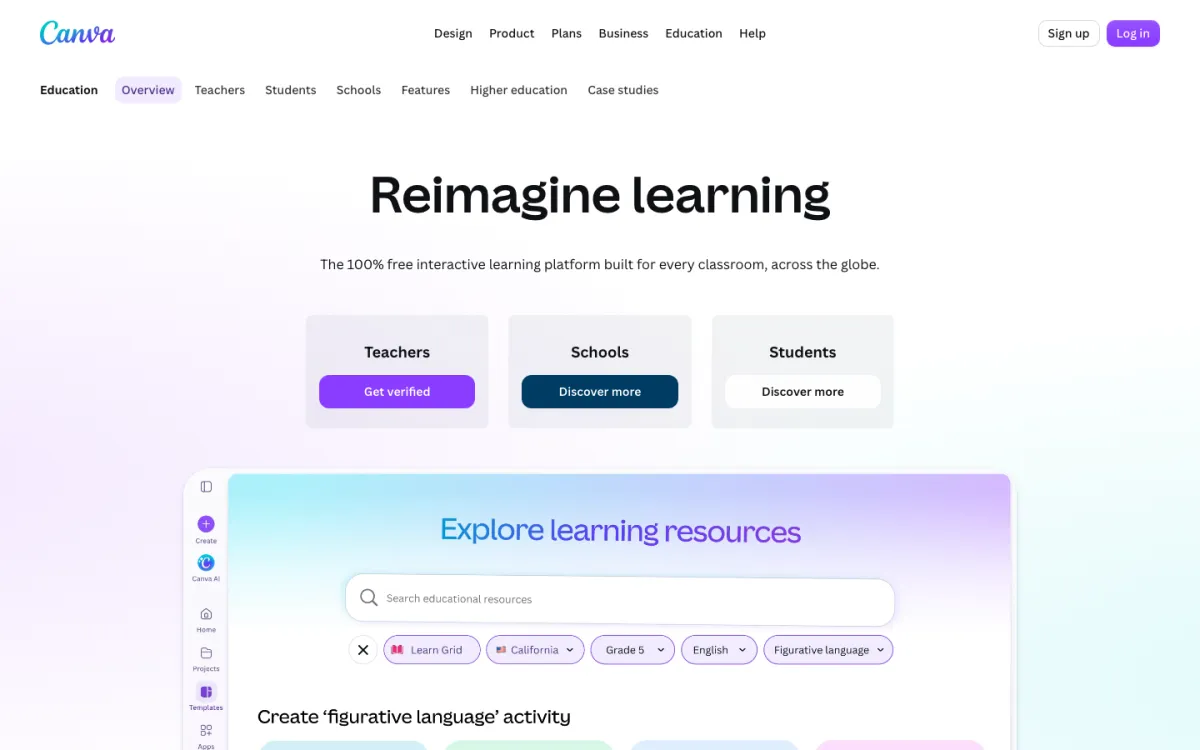
Canva for Education is the best design tool for teachers who want AI help with visuals, because eligible K-12 teachers get all of Canva's premium features free, AI tools included. Magic Write drafts lesson ideas, activity instructions, and parent messages right inside your slides, worksheets, and posters.
Students join free with a school email, and Canva connects to Google Classroom, Canvas, Schoology, and other LMSs. Canva's eligibility page excludes colleges, universities, and their lecturers, so professors should check whether their campus provides Canva or pay for Canva Pro.
Best for: K-12 teachers who build slides, handouts, and anchor charts every week.
Pricing: Free for eligible K-12 teachers, students, schools, and districts; Canva Pro for everyone else is $18 a month, or $12 a month billed annually (Canva for Education).
Strengths: Premium templates, photos, and AI tools cost eligible teachers nothing, and students can work in the same design while you comment.
Watch out for: Canva is a design tool, so it will not align a lesson to standards or check facts for you. If Canva does not recognize your school email, you wait for an application review.
Try this: Open Magic Write in a blank Canva doc or slide and paste:
Write the text for a one-page [GRADE] anchor chart on [TOPIC]:
a title under 6 words, a one-sentence definition, 3 steps with a
short example for each, and 2 common mistakes to avoid. Use words
a [AGE]-year-old can read.
SurePrompts is the best pick for teachers who already use ChatGPT, Gemini, or Copilot and keep getting generic answers. You describe what you need in plain English, such as "a differentiated 7th grade lesson on ratios for a class with six English learners," and SurePrompts builds a structured prompt with a role, context, step-by-step instructions, and an output format you can paste into any chatbot.
It applies the same structure as the Try this prompts on this list, without the typing. The lesson plan prompt generator handles a common teaching job, and Pro's cloud-saved prompts keep a working prompt ready for the next unit.
Best for: Teachers who have a district-approved chatbot and want better results from it.
Pricing: A free account with Google sign-in includes 3 AI prompt generations a month and the free templates; Pro is $3.99 a month or $29.99 a year with 200 generations a month, 320+ expert templates, and cloud-saved prompts (SurePrompts AI prompt generator).
Strengths: It works with whichever chatbot your district approves. Prompts are plain text, so you can share them with your grade-level team.
Watch out for: SurePrompts builds prompts; it does not run them, so you still need a chatbot. The free plan's 3 generations a month suits a trial, not weekly planning.
Try this: Paste this description into the generator, then take the finished prompt to your chatbot:
I teach [GRADE] [SUBJECT] to [NUMBER] students, including
[NUMBER] English learners and [NUMBER] who read below grade
level. I need a [LENGTH]-minute lesson on [TOPIC] aligned to
[STANDARD]. Output: a lesson plan table, two leveled versions of
the practice task, and a 3-question exit ticket with answers.Here is how the best AI tools for teachers compare on free access and price, as of November 2026. Prices for AI tools for teachers in 2026 change often, so confirm before you buy.
| Tool | Best for | Free plan | Paid plans from | Standout feature |
|---|---|---|---|---|
| MagicSchool | Lesson planning | Yes, with usage limits | $8.33 a month (billed annually) | 80+ single-task teacher tools |
| Brisk Teaching | Writing feedback | Yes, 20+ tools | $14.99 a month | Works inside Google Docs |
| Gemini for Education | Google schools | Yes, with school accounts | $20 per user a month (billed annually) | Gemini built into Classroom |
| ChatGPT for Teachers | U.S. K-12 chatbot | Yes, for verified staff | None during the free period | Shared team projects |
| Khanmigo | Khan Academy classes | Yes, for teachers | District plans by quote | Plans linked to Khan content |
| Microsoft Copilot Teach | Microsoft 365 schools | Yes, with a school license | $18 per user a month | Quizzes built in Forms |
| Diffit | Differentiation | Yes, 90-day history | $14.99 a month | Print-ready leveled passages |
| Gemini Notebook | Your own sources | Yes | $4.99 a month | Answers cite your sources |
| Canva for Education | Slides and visuals | Yes, for eligible K-12 | Canva Pro $12 a month (billed annually) | Premium design tools free |
| SurePrompts | Better prompts | Yes, 3 generations a month | $3.99 a month | Prompts for any chatbot |
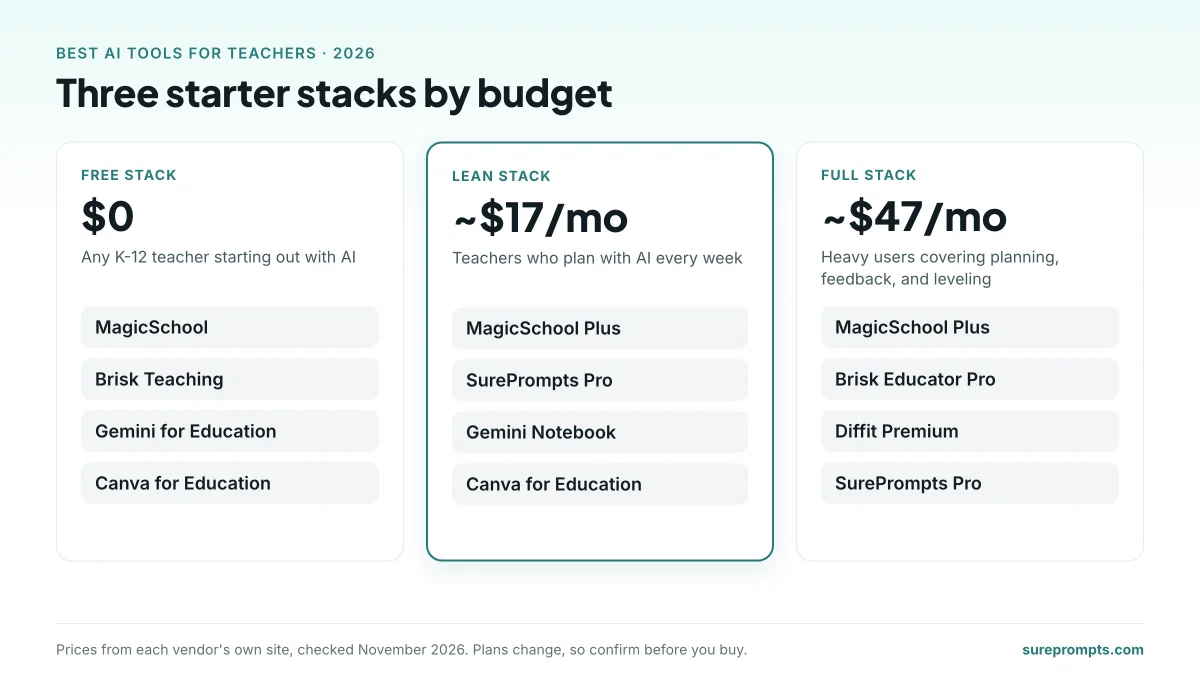
These stacks combine the best AI tools for teachers at three budgets, using monthly list prices.
Free stack. MagicSchool for planning, Brisk for feedback, Gemini for Education (or Copilot Teach in a Microsoft district) for chat and quizzes, and Canva for Education for visuals. It shows how far free AI tools for teachers go: planning, feedback, and materials at $0.
Lean stack (about $17 a month). MagicSchool Plus ($12.99) removes the generation cap, SurePrompts Pro ($3.99) sharpens prompts for your school's chatbot, and Gemini Notebook and Canva for Education stay free.
Full stack (about $47 a month). MagicSchool Plus, Brisk Educator Pro ($14.99), Diffit Premium ($14.99), and SurePrompts Pro cover planning, feedback, differentiation, and prompting. Annual billing where offered brings it to about $38 a month, and many districts buy school licenses, so ask before you pay.
Before you use any AI tool with student information, confirm your district has approved it and signed a data privacy agreement. FERPA covers student education records, COPPA covers online services that collect data from children under 13, and many states have their own student-privacy laws. A vendor's compliance claim is a starting point, and your district makes the call. This is general information, not legal advice.
Check every output for accuracy and bias before it reaches students, because AI tools can state wrong facts with confidence. Our guide on how to stop AI hallucinations has prompts that help.
AI-writing detectors give false positives, so never treat a detector score as the only evidence of misconduct. Talk with the student and look at drafts and version history first.
Warning
Never paste student names, IEP details, or grades into an AI tool your district has not approved. Use ID numbers, and describe needs in general terms instead of pasting records.
If your school runs Google Workspace, start with Gemini for Education and Gemini Notebook, then add Brisk for feedback.
If your school runs Microsoft 365, start with Copilot Teach, and add MagicSchool for jobs Teach does not cover.
If you want the best AI for lesson plans with no setup, use MagicSchool, or ChatGPT for Teachers plus SurePrompts if you are U.S. K-12 staff.
If you teach ELL, special education, or intervention, Diffit and Brisk's Change Level are the strongest AI tools for differentiated instruction here.
If you teach in higher ed, use your campus Gemini or Copilot license and Gemini Notebook, since Canva for Education and ChatGPT for Teachers exclude you.
Tip
Pick one tool for one job, such as exit tickets, and use it for two weeks before adding another. Most picks here offer AI for teachers free, so trying costs only your time.
Every tool here gives better output when you give it a role ("an experienced 5th grade science teacher"), context (standards, student needs, time available), a format (table, checklist, slide outline), and an example of a lesson you liked. Assigning the role is called role prompting, and it works in Raina, Gemini, Copilot, and ChatGPT alike.
To skip the typing, the AI prompt generator for teachers turns a plain-English request into a structured prompt, and our prompts for teachers cover planning, feedback, and parent emails. For student-facing picks, see the best AI tools for students.
Happy planning.
Try it yourself
Build expert-level prompts from plain English with SurePrompts — 330+ templates with real-time preview.
Open Prompt BuilderSurePrompts turns plain English into expert-level AI prompts. 330+ templates, real-time preview, works with any model.
Try AI Prompt GeneratorGenerate project rules files for AI coding assistants (Cursor, Claude Code, Windsurf, Copilot)
Generate structured comparison analyses of AI tools, SaaS products, or tech solutions
Free lesson plan prompt generator. Create AI prompts for lesson plans with objectives, activities, and assessments. K-12 and higher ed. No signup required.
Free education prompt generator. Create AI prompts for lesson plans, rubrics, assessments, and curriculum materials. Standards-aligned and grade-specific.
You didn't become a teacher to wrestle with technology. Here are the AI prompts that save hours without making you feel like a robot is doing your job.
An honest roundup of 10 AI tools that genuinely help students study, research, and learn — covering chatbots, research, note-taking, STEM, writing, and prompting. Includes guidance on responsible use.
Complete guide to Google Gemini in 2026. Learn Pro, Flash, Deep Think models, Workspace integration, and prompting techniques.